Google Pixel Watch
Google LLCCommunication
4.74.84K Reviews
- Version
- 5.0.0.958206140
- Installs
- 10.00M
- Age Rating
- Everyone
Screenshots
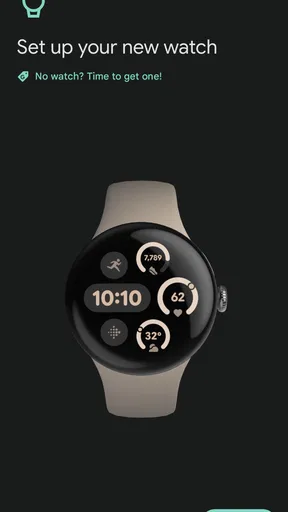
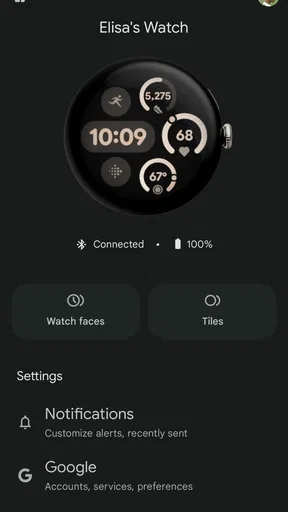
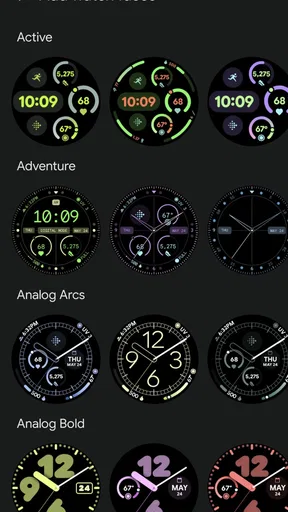
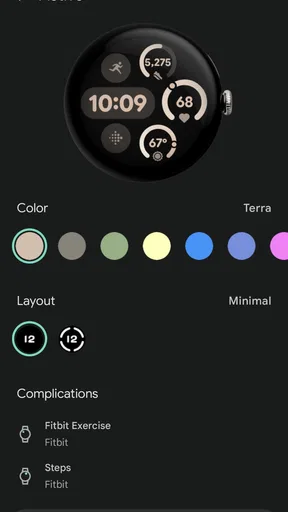
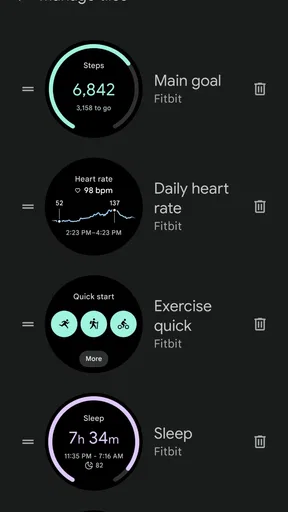
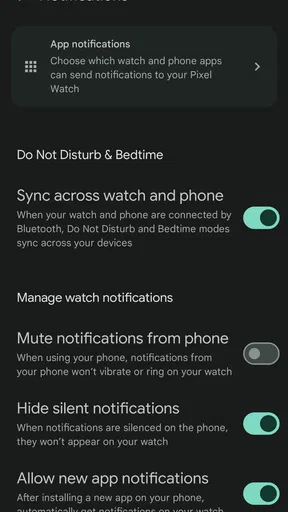
Our Review of Google Pixel Watch
 Analysis by Appyee
When you buy a Google Pixel Watch, the phone app is the place where the relationship really begins. I found it less interesting as a standalone communication tool and more useful as the control room for setting up, managing, and understanding the watch. That distinction matters: if you do not own a compatible Pixel Watch, there is little reason to install it, but if you do, this is the app that turns a small screen on your wrist into something you can configure around your daily routine.
Google LLC presents it as the device app for its watch, and that description is accurate without telling the whole story. The app sits between the watch and your Android phone, handling the practical work that would be awkward to do on the watch itself. I used it as the starting point for pairing, adjusting settings, checking the device, and deciding which parts of the watch experience deserved attention. The best way to understand it is as a guided handoff: the phone supplies the larger screen and controls, while the watch supplies quick access when I am away from the phone.
From an unconfigured watch to a useful daily companion
I’d begin with a little patience rather than expecting the watch to feel polished the moment it is paired. The first decisions are really about how much of your phone’s activity deserves a place on your wrist, and that balance is easier to judge after a normal day than from a setup screen. Next, I’d look at how the app behaves when the watch is doing more than simply showing a quick glance.
The first step is preparing the right device relationship
The opening experience is not about browsing a feed or creating content. It is about making sure the phone and watch recognize each other and can work as a pair. That makes the app unusually focused. It does not try to become a general communication hub, and it does not pretend that a watch can replace every phone function. Instead, it gives me a clearer place to begin than the watch's smaller display could provide.
I appreciate that approach because wearable setup can otherwise feel fragmented. One screen shows a prompt, another asks for confirmation, and a third hides an important option behind a menu. Here, the phone acts as the main workspace. I can look at the process comfortably, make choices with more precision, and return to the watch only when the app has finished handing over the relevant setting or instruction.
The app is free and aimed at Everyone, which makes sense for a device companion used by a broad range of owners. It is available for Android phones running version 11 or later, so the operating system requirement is worth checking before spending time on installation. The current release is 5.0.0.958206140, and the app was released on September 30, 2022. Those details are useful when troubleshooting because an old phone or an outdated app can make a watch problem look more mysterious than it really is.
Configuration is easier when I treat it as a routine, not a one-time task
My practical advice is to avoid rushing through the initial setup just to reach the watch face. The phone app is the better place to review the choices that shape everyday use. A watch can be technically connected and still feel poorly configured if alerts are too noisy, the display behaves inconveniently, or the shortcuts do not match the way you move through the day.
I would start with the situations that matter most: commuting, exercising, working at a desk, and sleeping if the watch is used overnight. Each situation puts different pressure on a wearable. A notification that is helpful during a walk may be distracting during a meeting. A watch face that looks excellent indoors may be harder to read outside. The companion app is valuable because it lets me make those decisions on the phone rather than trying to solve them through repeated taps on the wrist.
The important insight is that setup is really workflow design. The app is not merely connecting hardware; it is helping decide which information should travel from the phone to the wrist and which information should stay on the phone. That filter has a direct effect on whether the watch feels calm and useful or constantly demanding.
A realistic morning workflow
Imagine a normal weekday morning. I leave the phone charging in another room while getting ready, but I still want to notice an important message or a calendar reminder. The watch can provide the immediate glance, while the phone app remains the place where I control the relationship between the two devices. If the wrist becomes too busy, I do not need to inspect every alert on the watch; I can return to the larger screen and adjust the arrangement there.
That handoff is the app's strongest everyday idea. The watch handles urgency and convenience. The phone handles organization. I can glance at the wrist while carrying groceries, walking outside, or moving between rooms, then use the phone when I need to make a considered change. The result is less about adding another screen and more about assigning each screen a sensible job.
Why the phone remains the better control surface
Small displays are excellent for quick checks but poor for detailed management. I found the phone app more comfortable whenever a decision involved several settings or required comparing options. The larger screen reduces the chance of tapping the wrong control, and it makes the consequences of a change easier to understand before I commit to it.
This also helps with troubleshooting. If the watch does not behave as expected, I can begin with the phone app instead of guessing from the wrist. Is the connection active? Is the relevant setting enabled? Is the phone's operating system suitable? These checks do not guarantee that every problem disappears, but they create a more logical path through the problem.
Where the handoff becomes visible
The most interesting part of using the app is noticing what happens after I make a change. I select or adjust something on the phone, then wait for that decision to appear on the watch. That transfer is normally invisible once everything is working, but it becomes important when a setting seems delayed or the watch does not immediately reflect the phone.
I learned to separate three questions: did I change the setting, did the phone register the change, and did the watch receive it? Treating those as separate stages prevents unnecessary repeated taps. If I keep changing the same option because the watch has not updated yet, I may create confusion rather than solve it. A short pause, followed by checking the phone app again, is often a more sensible workflow than repeatedly interacting with the watch.
This is one of the app's less obvious strengths: it gives me a reference point. The watch is convenient but transient; the phone app is where I can return and verify what I intended. That makes it especially useful for people who share their day between several environments and need the watch to behave consistently without constantly rebuilding its setup.
How it compares with using the watch alone
Using the watch without the companion app would be faster for a single glance, but it would be a poor substitute for managing the device. The wrist is designed for immediacy. It is not the place I would want to review a long sequence of choices, diagnose a connection issue, or reorganize the overall experience.
Compared with a general communication app, this one is much narrower. It does not compete with messaging services, email clients, or video calling tools. Its value comes from supporting the physical device that sits between those services and my attention. Compared with a generic wearable manager, its advantage is specificity: the controls and guidance are built around the Pixel Watch rather than a broad collection of unrelated hardware.
That specialization is also its main limitation. If I am looking for an app that brings conversations together, this is the wrong category. If I want to manage a different brand of watch, it is not a sensible choice. The app is at its best when the hardware match is exact and the user wants a straightforward bridge between phone and wrist.
Useful habits that make the experience smoother
One helpful habit is to make changes in batches. Instead of altering one setting every few minutes while wearing the watch, I would set aside a short period to review the phone app, make related adjustments, and then test the result in a real situation. This reduces the number of handoffs and makes it easier to identify which change affected the outcome.
A second habit is to test the watch away from the phone after setup. A device can look perfect while both screens are beside each other, but the real question is whether the watch still supports the moments when reaching for the phone is inconvenient. I would take a short walk, leave the phone in a bag, or move through a normal work routine and note what feels useful and what feels excessive.
A third is to use the app as a maintenance checkpoint rather than opening it only when something breaks. A quick review can reveal that the original setup no longer fits the way I use the watch. Work schedules change, notification habits change, and a configuration that felt right during the first week may become irritating later. The phone app makes that adjustment less disruptive than trying to tolerate the problem.
The result: a watch that feels more intentional
After completing the setup and testing the handoffs, the Pixel Watch becomes easier to understand. I know which moments belong to the wrist and which require the phone. I also have a clearer idea of where to go when something needs changing. That confidence is the real outcome of the app; it reduces the guesswork around a device that otherwise has many small decisions hidden behind a compact interface.
The app has earned a 4.7 average from roughly 171 thousand ratings, with more than 10 million installs. Those numbers suggest that many owners see enough value in the companion experience to keep it available, and my experience fits that general impression. It is not exciting in the way a creative or entertainment app can be, but it is practical in the way a good device utility should be.
I would recommend it to a Pixel Watch owner who wants a clear setup path, a comfortable place to manage the watch, and a reliable reference when the wrist and phone do not seem synchronized. It is particularly suitable for someone new to smartwatches because the larger phone screen makes the relationship easier to learn.
Where the flow breaks down
The first weakness is unavoidable but important: the app's usefulness depends on owning the supported watch. Without that hardware, there is no meaningful experience to explore. This is not an app I would install casually to see whether it replaces a communication service or adds value to an ordinary Android phone.
The second weakness is the dependence on handoffs. When the phone and watch communicate smoothly, the separation between them feels elegant. When a change takes time to appear, the experience becomes less reassuring. The user has to work out whether the issue is a setting, a connection, or simply a delay. The app gives me a place to investigate, but it cannot make every transition feel immediate.
There is also a learning cost for people who expect a watch to work independently from the moment it leaves the box. The companion app asks the user to think about configuration, attention, and device roles. That is worthwhile, but it means the experience is not completely effortless. Someone who wants a minimal wearable with almost no decisions may prefer a simpler device and its matching software.
I would also skip it if my main goal is managing messages or calls from one central inbox. The app supports the watch relationship rather than replacing the services that generate communication. In that situation, a dedicated messaging or phone app is the better tool, while this companion remains a supporting layer.
Who should install it
For Pixel Watch owners, installing the app is an obvious part of making the device usable. I would especially recommend it to people who want to keep their phone in a pocket or bag, need to tune alerts for different parts of the day, or prefer making detailed changes on a larger screen. It is also helpful for anyone who wants a clear starting point when the watch feels unfamiliar.
I would be more cautious for users who dislike companion software, rarely change device settings, or expect every wearable feature to be managed directly from the wrist. The app is not a destination in itself, and its narrow purpose may feel unnecessary once the watch is configured. Even then, keeping it available can be useful when the device needs adjustment or when a new routine calls for a different setup.
My final assessment of the phone-to-wrist workflow
Google Pixel Watch succeeds because it respects the difference between a phone and a wearable. The phone app is the planning and control stage; the watch is the quick-action stage. When that division is understood, the experience feels more deliberate and less cluttered. I can prepare the watch at home, use it for brief decisions during the day, and return to the phone when a deeper change is needed.
It is not a universal communication solution, and it is not free from the occasional friction of device handoffs. Still, for the specific job of managing a Pixel Watch, it is focused, accessible, and practical. If you own the watch, this is the app that turns setup choices into a repeatable daily workflow. I would install it, configure it patiently, test the result away from the phone, and revisit the settings whenever the watch starts asking for more attention than it gives back.
Verdict
Strengths of Google Pixel Watch
- Clean Wear OS interface with smooth Google app integration.
- Bright, responsive display is easy to read outdoors.
- Accurate health tracking for heart rate and daily activity.
- Compact design feels comfortable for sleep and all-day wear.
- Google Assistant and Maps are useful directly from the wrist.
Limitations of Google Pixel Watch
- Battery life usually requires daily charging.
- Some health features require a Fitbit Premium subscription.
- Limited compatibility with iPhones and non-Android devices.
- The smaller case may feel cramped for users wanting a large display.
- Certain features and services vary by country and model.
Other Releases by Google LLC
View All
Google Calendar
Productivity4.6

Google Messages
Communication4.6

Tools4.0

Google TV
Video Players & Editors3.9
Similar Picks in This Category
View AllGoogle Messages
Google LLC4.6

Gmail
Google LLC4.1

Google Meet
Google LLC4.4

Google Chrome
Google LLC4.1

WhatsApp Messenger
WhatsApp LLC4.6

Carrier Services
Google LLC4.2
Frequently Asked Questions
What is the Google Pixel Watch, and which phones is it compatible with?
The Google Pixel Watch is a Wear OS smartwatch designed to work closely with Android phones and Google services. It can pair with compatible Android devices through the Google Pixel Watch app, but it does not support iPhones. Before downloading the companion app, check your phone’s Android version and Bluetooth requirements, since compatibility can vary between Pixel Watch generations.
What can I do with the Google Pixel Watch app?
The Google Pixel Watch app is used to set up and manage the watch from your phone. During testing, it provided access to watch faces, app installation, notifications, Google Assistant settings, connectivity options, safety features, and system updates. It also helps manage Google Wallet, Fitbit-related features, and preferences such as display, sound, and battery behavior.
Does the Google Pixel Watch require a subscription?
Basic watch setup and many everyday functions do not require a paid subscription. However, some health and fitness features may depend on Fitbit services, and advanced insights can require a Fitbit Premium membership. Cellular connectivity may also involve a separate carrier plan. Review the available features and regional pricing before subscribing, especially if health tracking is your main reason for downloading the app.
Can the Google Pixel Watch track health, workouts, and sleep?
Yes, the Google Pixel Watch can support activity, heart-rate, workout, sleep, and other wellness tracking features, depending on the model and connected Fitbit services. Results should be treated as general wellness information rather than medical advice. Some measurements require proper fit and regular wear, while certain advanced health tools may vary by country, device generation, and Fitbit subscription status.
Is the Google Pixel Watch app safe and easy to use?
The official Google Pixel Watch app is generally straightforward to use, with guided setup and clearly organized controls for the watch and connected Google services. Because it handles personal, location, fitness, and health-related information, review its permissions and privacy settings during installation. Download it only from the official Google Play Store and keep both the app and watch software updated.
